Ready for the next step
From your iPhone to a file, a PDF or a print
Understand when to save a digital image, share a prepared layout or generate a PDF for printing from Passport Booth.
Updated 4 minute read
The short answer
The short answer
Choose the output for the job. Save the digital image when an application asks for a photo file. For paper applications, choose a print layout and use the available Print, Share or Generate PDF action. Keep the original export and check the page scale before printing.
Key checks
- A digital photo and a print sheet serve different purposes.
- Choose the paper size before generating a print PDF.
- Share the exported file rather than a screenshot.
- Print at 100% or Actual Size and measure the result.
Step by step
Choose the saved photo
Open the photo you prepared for the relevant document. Check that its application route and dimensions still match what you need.
Pick the correct output
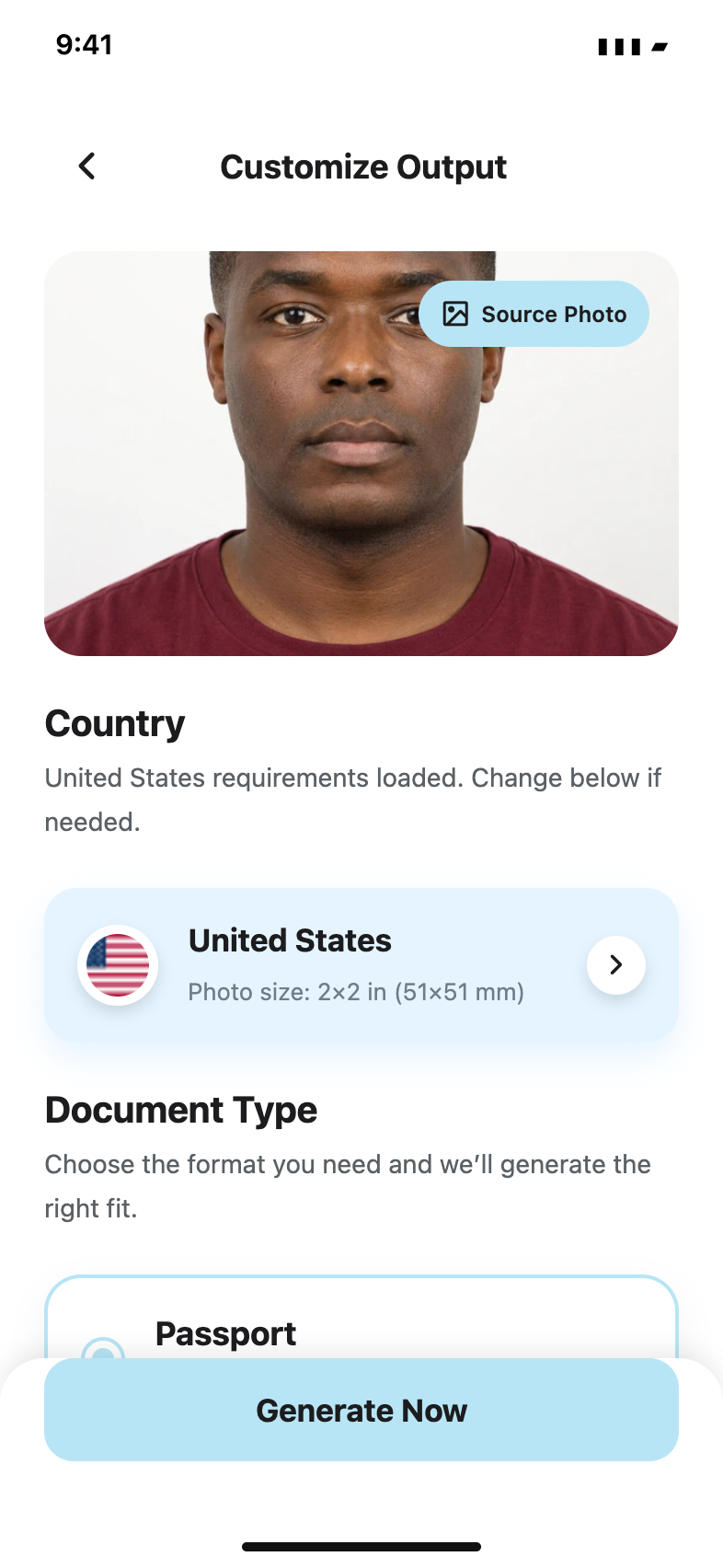
Use the digital save option for an upload. For printing, open the available layout options and choose the paper size and copy arrangement.
Save or share the file
Use Share or Generate PDF when available. In the iPhone share sheet, choose a suitable destination such as Files, then check the saved document opens correctly.
Check the print settings
Select matching paper, 100% or Actual Size and no automatic fit or crop. Measure a finished photo before cutting the sheet.
Choose paper size without changing photo size
The paper layout determines the sheet and the number of copies that fit around margins. It should not change the required physical dimensions of each photo. Review the layout before exporting; do not shrink photos to squeeze in more copies.
Keep a clean export
Screenshots can add interface elements or reduce resolution. Send the file produced by the app. If a messaging or printing service offers compression, resizing or automatic enhancement, use settings that preserve the file and the intended scale.
Check the destination, too
A correctly saved file can still be unsuitable for a particular upload field. Check the receiving service's accepted file types and size limits. A PDF is useful for a print workflow but is not a substitute for a required JPEG photo.
Common questions
Why did my printed photo come out too small?
The print service may have applied Fit to Page or added scaling. Reprint at Actual Size or 100% on matching paper and measure the result.
Can Passport Booth send me physical prints?
This workflow prepares files and print layouts. Use your own printer or a print service; it does not order or deliver physical photographs.
Official guidance
Requirements can change. Use the issuing authority’s current guidance as your final reference before submitting.